Practice Admin guide
Set up and support your practice's case conferences
A step-by-step handbook for practice managers — from your first-day setup to preparing patient rosters, managing consent, and getting each conference ready for your GPs. All the behind-the-scenes work, none of the clinical detail.
What's inside
Jump to what you need
Each part stands on its own — come back any time and head straight to the task in front of you.
Getting oriented
What a practice admin does, how a case conference flows, and a tour of your menu.
1First-time setup
The four-step welcome wizard: confirm your GPs, conference blocks, terms, telehealth.
2Everyday tasks
Patients, consent, preparing rosters, requests, and triaging GP conference requests.
3On meeting day
Getting a conference ready for your GP on the day, on a shared device.
4Billing & practitioners
Preparing items for Medicare, and managing the GPs at your practice.
5Reference
Glossary, who to contact, and answers to common questions.
Part 0 · Getting oriented
Your role, in plain English
The GP hosts the conference, you help them — we make it easy for you
Medicare-funded case conferences are hosted by the coordinating GP, between them and the patient's clinical team. Conference.care does the admin — we assemble the clinical team, provide the software and look after consent — and we only come to you when we truly need to, once we've exhausted every other option. This guide walks you through the parts you'll touch, so you can help your GPs whenever it counts.
Here's the quick version — what's yours to do, and everything we take care of for you.
What you'll do
- See every conference at your practice at a glance
- Add and update your practice's patients
- Help prepare a roster when needed — add, swap or remove patients
- Open a conference and load it on the GP's device (e.g. a clinic iPad)
- Keep an eye on billing and Medicare prep
- Invite GPs and manage who's a practice admin
What we take care of for you
- The scheduling and admin legwork
- Assembling the patient's clinical team for each conference
- The software and the technical side
- Consent — for the most part (we only escalate to you as a last resort)
- Cancelling or rescheduling — raise it with us and we'll sort it
Finding your way around
Your menu sits on the left. Here's what each item is for.
-
Open the app and sign in
Go to your Conference.care login and sign in with your practice email. You'll land on your Dashboard.
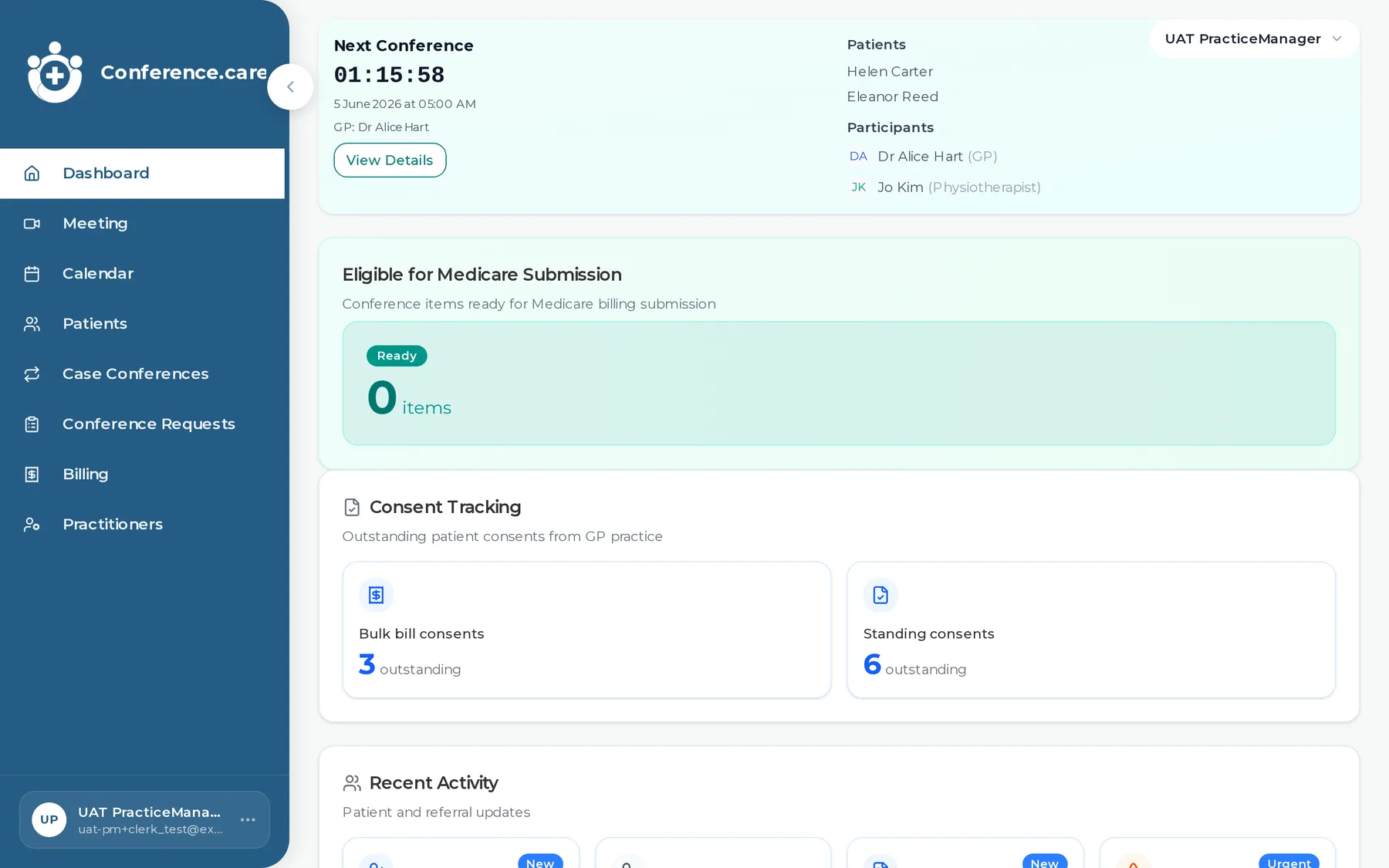
Your menu. Eight places to work — we'll visit each one. -
Know what each menu item does
Eight places to work — here's the one-line version of each.
Part 3 · On meeting day
Get the conference ready for your GP
You don't need to attend the conference yourself — the discussion happens between the GP and the patient's clinical team, who we help to assemble. Your job on the day is simply to make sure the GP can start on time.
The shared-iPad scenario
If your practice uses a shared device for telehealth — say an iPad in the consult room — you can open the scheduled conference from your own account and load it as the GP, so it's up and ready. Drop the device in front of the GP at the start time, and they take it from there.
Your job — get it ready
- Open the scheduled conference from your account
- Use Join as GP to load it on the device the GP will use
- Hand the device over at the scheduled start, ready to begin
Not your job — the conference itself
- The GP and the clinical team run the discussion
- You don't need to take part once it's loaded
- Patients don't usually attend — only if the GP invites them
Part 1 · First-time setup
The welcome wizard
The first time you sign in we'll walk you through a short setup — about five minutes. You can come back and change any of it later.
-
Confirm your practice's GPs
We pre-load the GPs we already know about. Check the list, add anyone we've missed, and remove anyone who has moved on. A name is all we need for each — add an email too and we'll send them an invite to set up their own login.
Use Add GP (it becomes Invite GP once you enter an email), or Save & invite to add an email to a GP you've already listed.
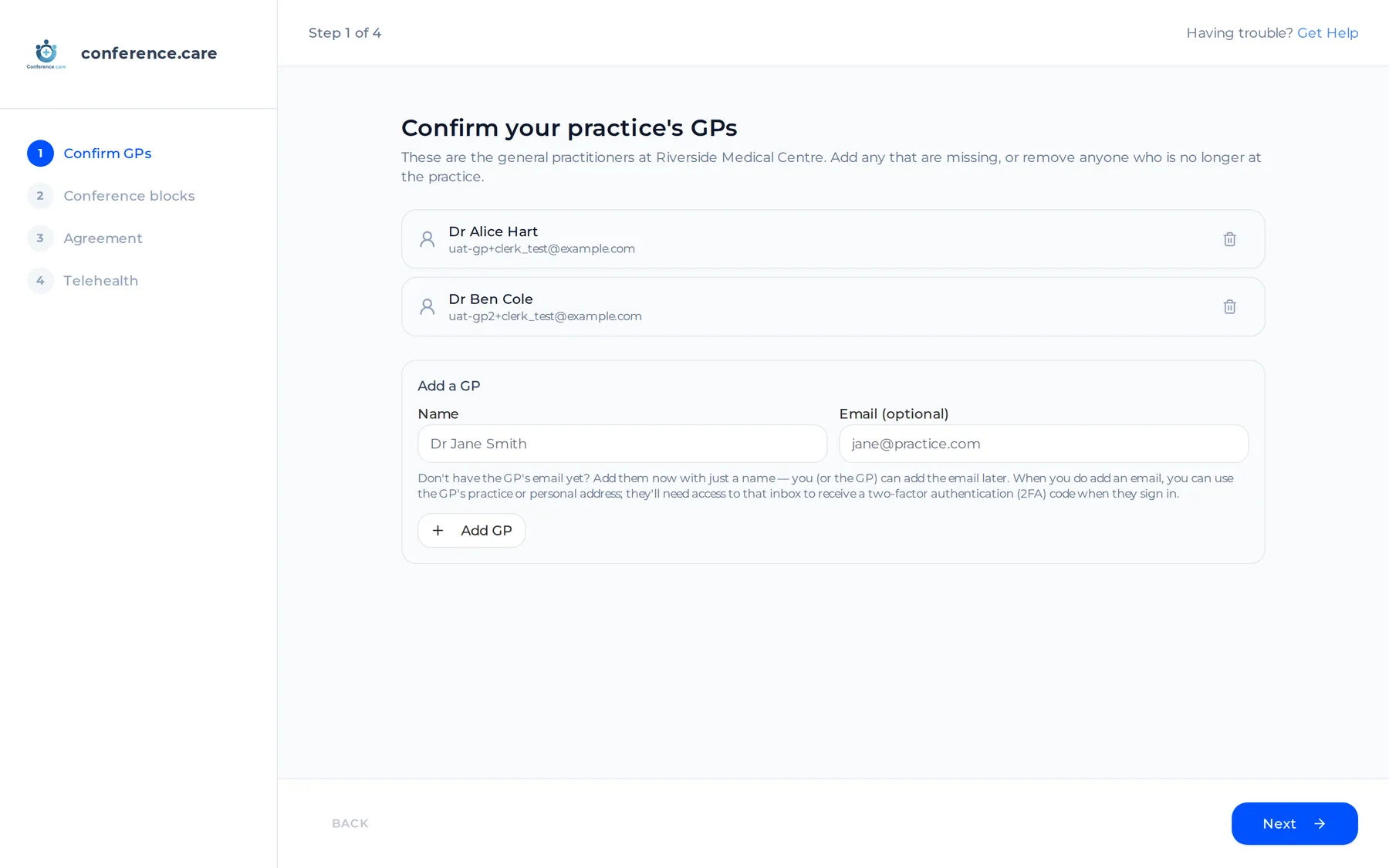
Step 1. Confirm who your GPs are. -
Set up conference blocks — optional
If a GP likes to hold their case conferences at a regular time, tell us here — a recurring one-hour block each week or fortnight. It helps us line everything up. Not sure yet? Skip it and set it up any time.
Set up block, then Add another for more.
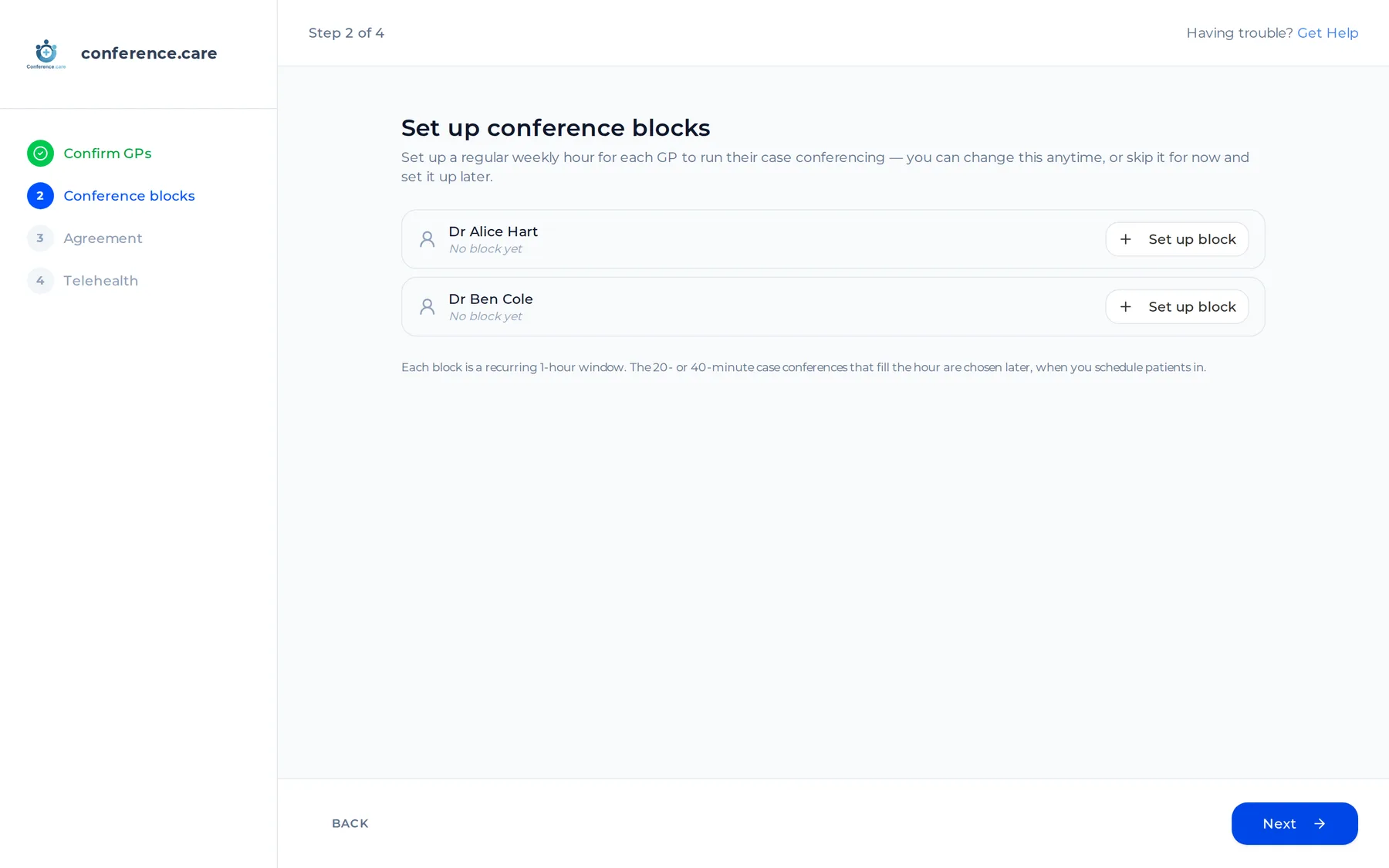
Step 2. Optional — a regular weekly slot per GP. -
Agree to the Terms of Service
A quick read, then tick to confirm you're authorised to accept on your practice's behalf.
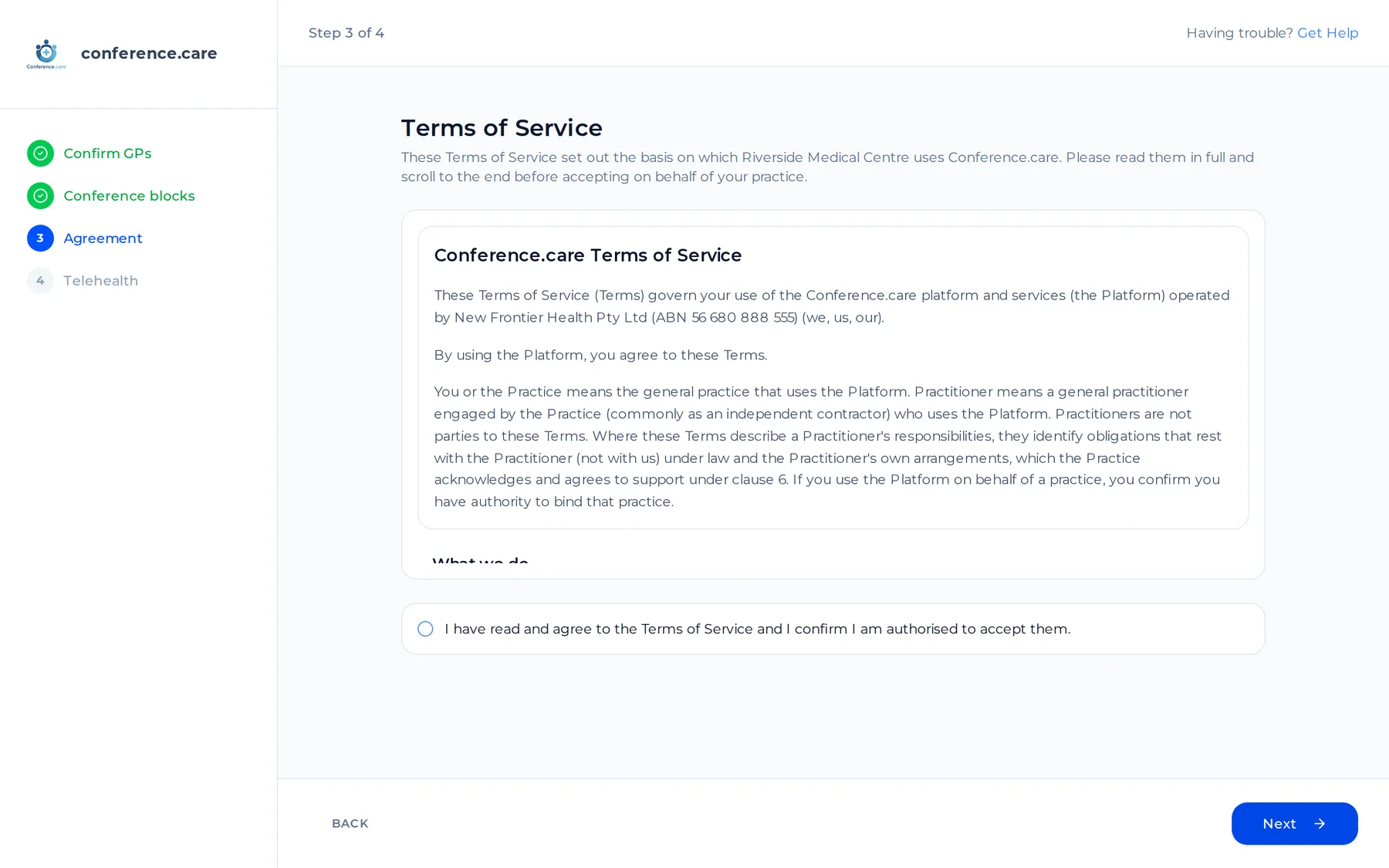
Step 3. Read and agree. -
Tell us about your telehealth setup
One question: is your practice equipped to perform telehealth consultations by video? Add a note if there's anything we should know — then finish, and you'll land on your dashboard.
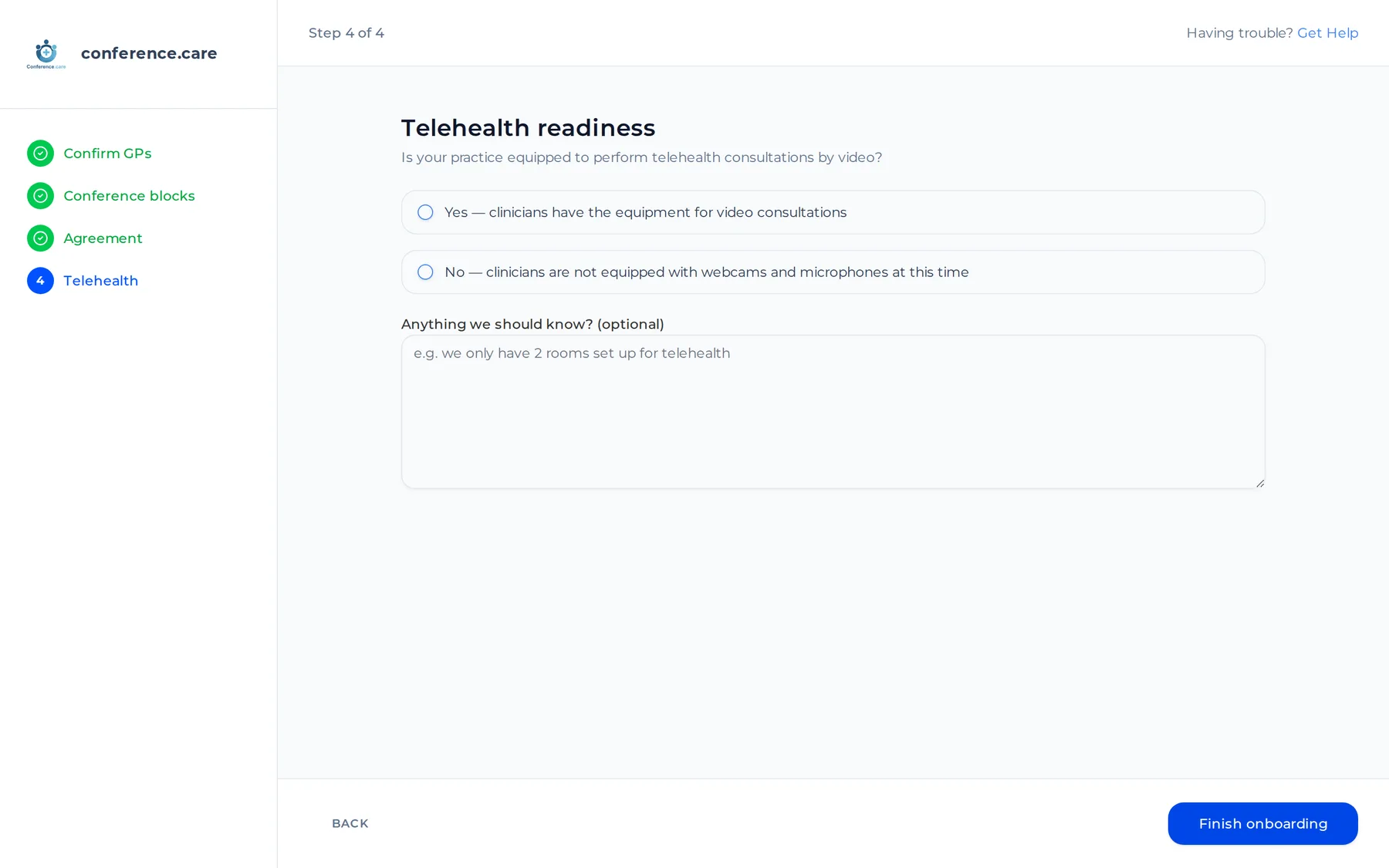
Step 4. Your telehealth readiness — then you're in.
That's the setup done
From here, the day-to-day is ours — assembling teams, scheduling, looking after consent. The rest of this guide is simply the tools you've got for when you want to check in or lend a hand.
Part 2 · Everyday tasks
The tools you've got
Most days there's nothing for you to do — we're running the admin in the background. But when you want to check on something or lend a hand, here's what's at your fingertips.
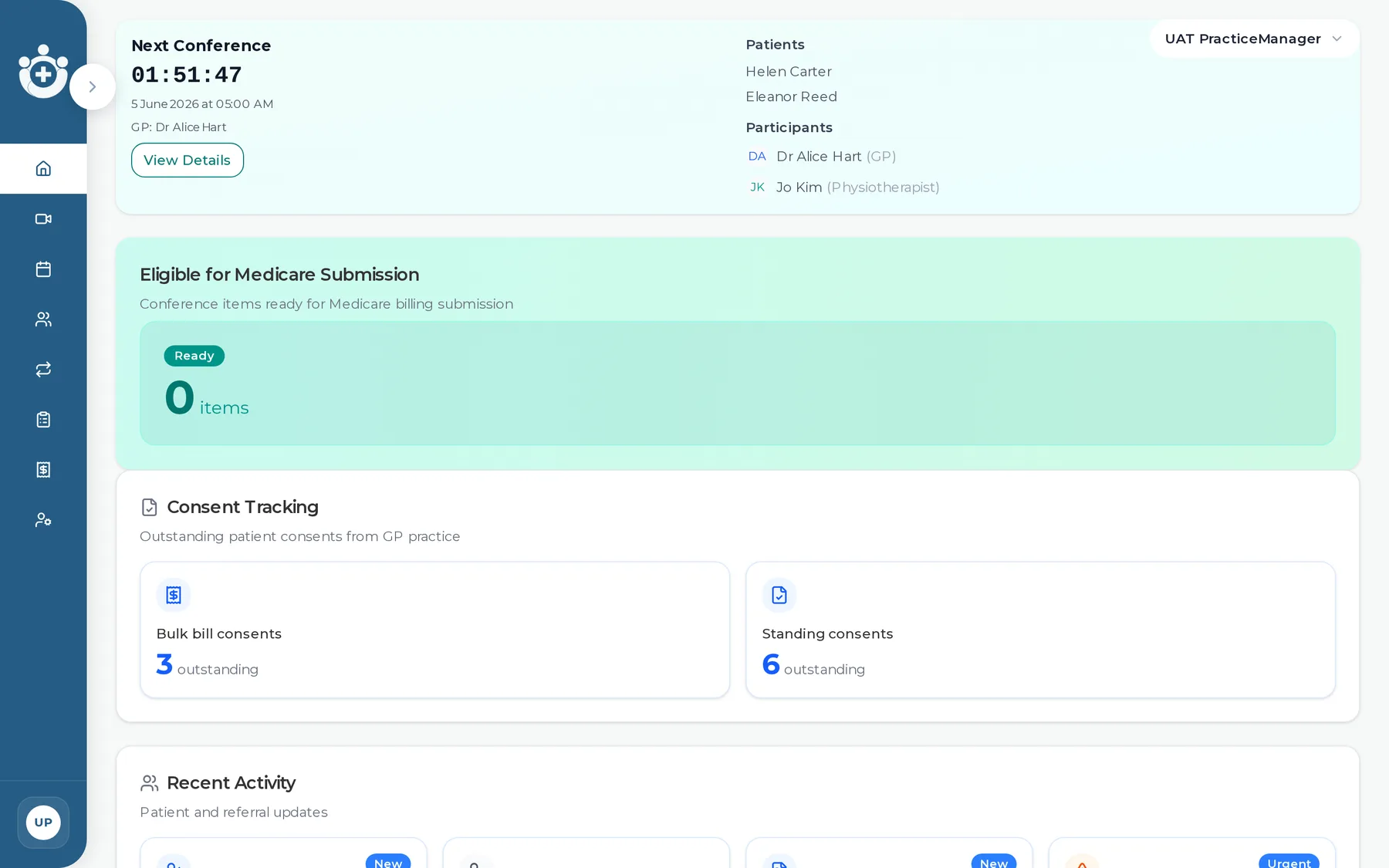
Your dashboard
Your home screen is a read-only snapshot that everything's on track: the next conference with a countdown, what's eligible for Medicare, where consent stands, and recent activity at your practice.
Adding and updating patients
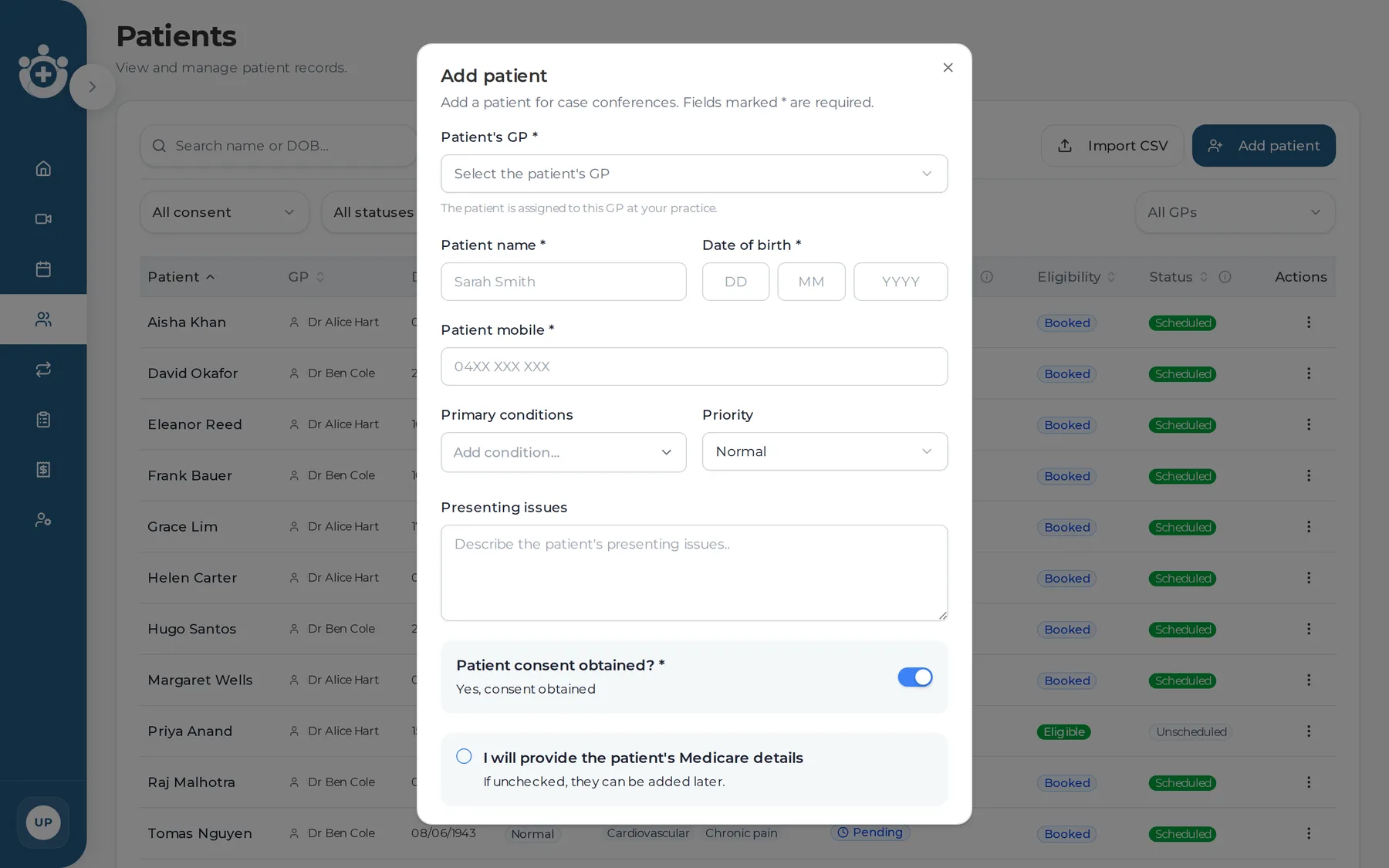
When a new patient should be on your practice's books, you can add them yourself.
Open Patients and start a new patient
From Patients, choose to add a patient.
Enter their details and choose the owning GP
Name, date of birth and contact details — and pick the owning GP, so we know whose patient they are.
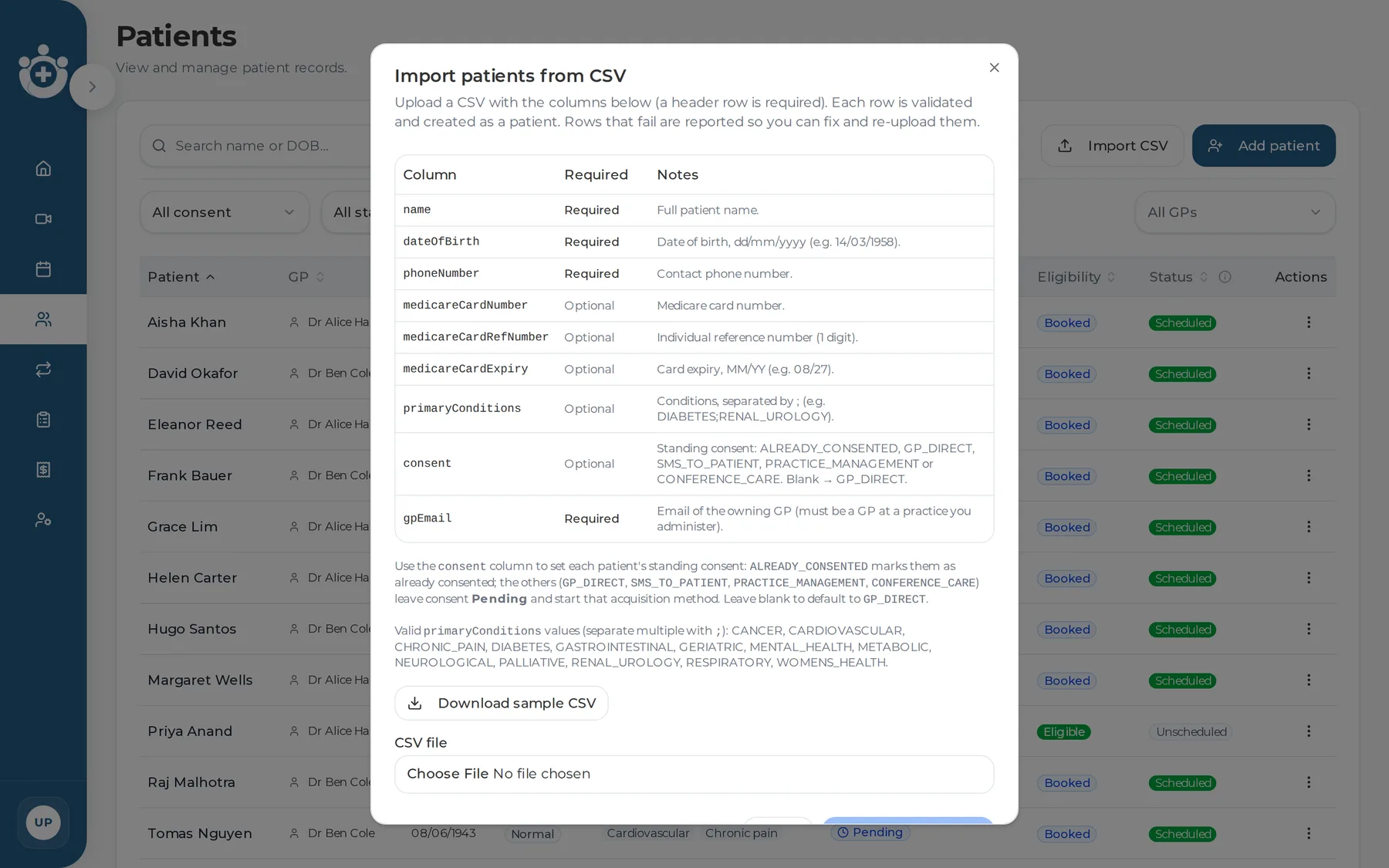
Adding several at once?
Import a CSV instead — just include each patient's owning GP, and we'll bring them all in together.
You don't need to chase consent
We look after consent for each patient. On the patient's record you'll just see where it's up to — the badges in Part 5 explain each one.
Helping prepare a conference roster
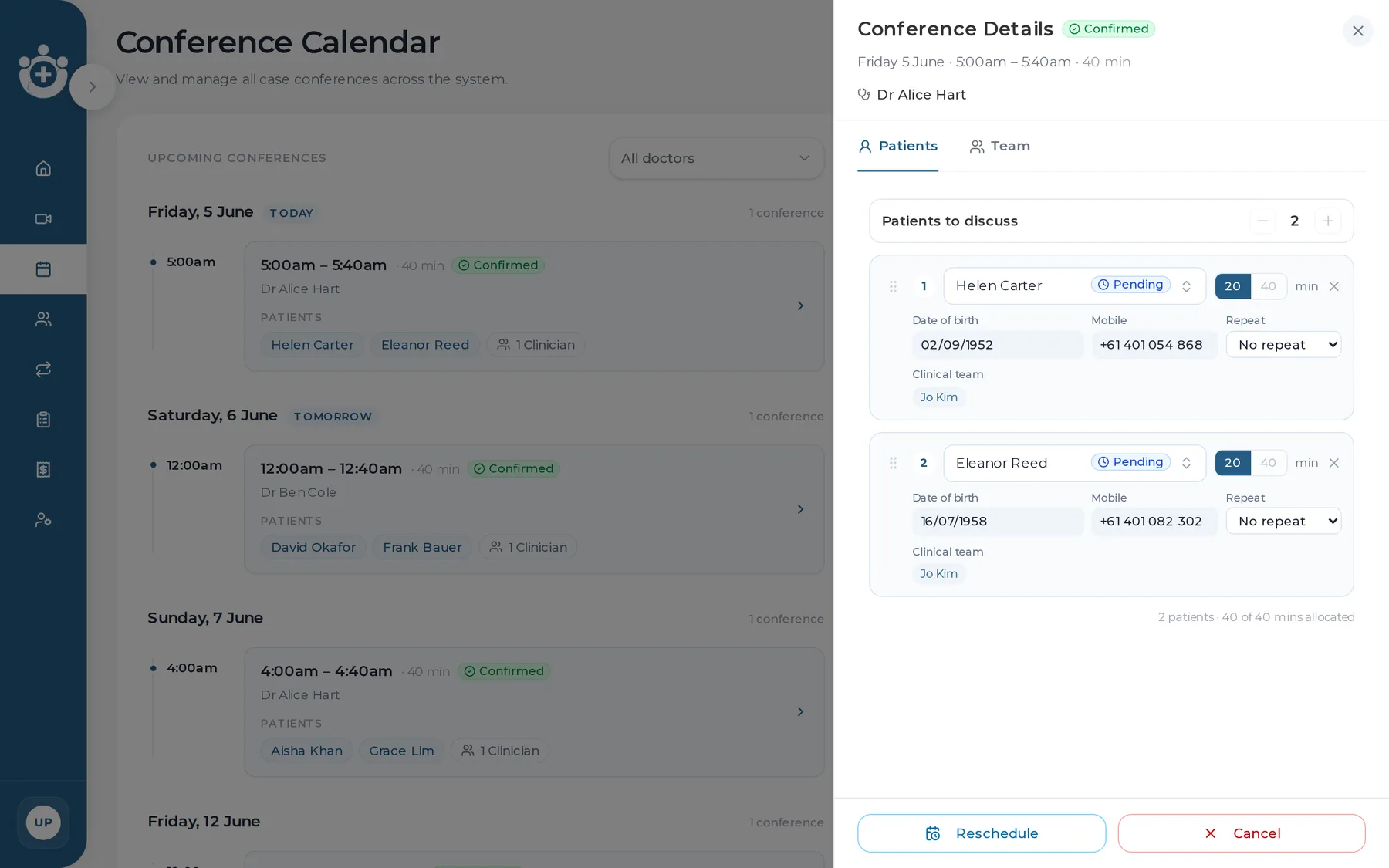
If a GP wants a patient added, swapped or taken off an upcoming conference, you can do it from the Calendar.
Open the conference
Find it on the Calendar and open its details.
Add a patient
Start typing and pick from the list. The picker shows who's available, who's already booked, and who isn't eligible yet — so it's clear who you can add.
Swap, remove, or add a note
Replace one patient with another, take a patient off, and jot any note the GP should see.
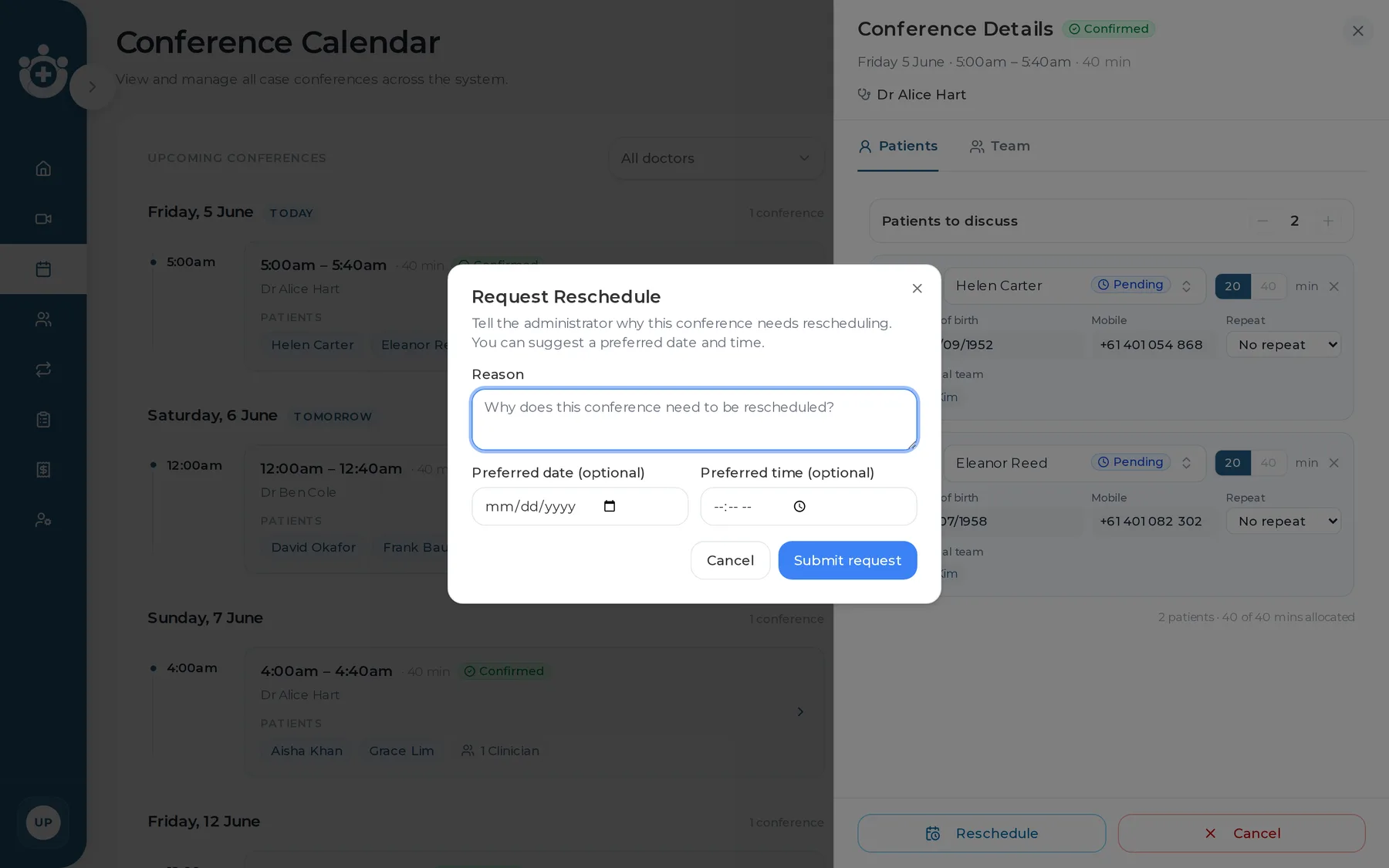
Need a conference moved or cancelled?
Rescheduling and cancelling are ours to handle — there's a team to reshuffle behind every change. Just raise a request (or tell us) and we'll take care of it.
Part 4 · Billing & practitioners
Keeping an eye on billing, and managing your GPs
Two more places you've got access to — one to keep an eye on the Medicare side, one to manage the GPs at your practice.
Billing & Medicare
We prepare the billing for each conference and look after consent. The Billing page lets you see where things stand — which items are eligible for Medicare submission, and the consent and Medicare status against each patient.
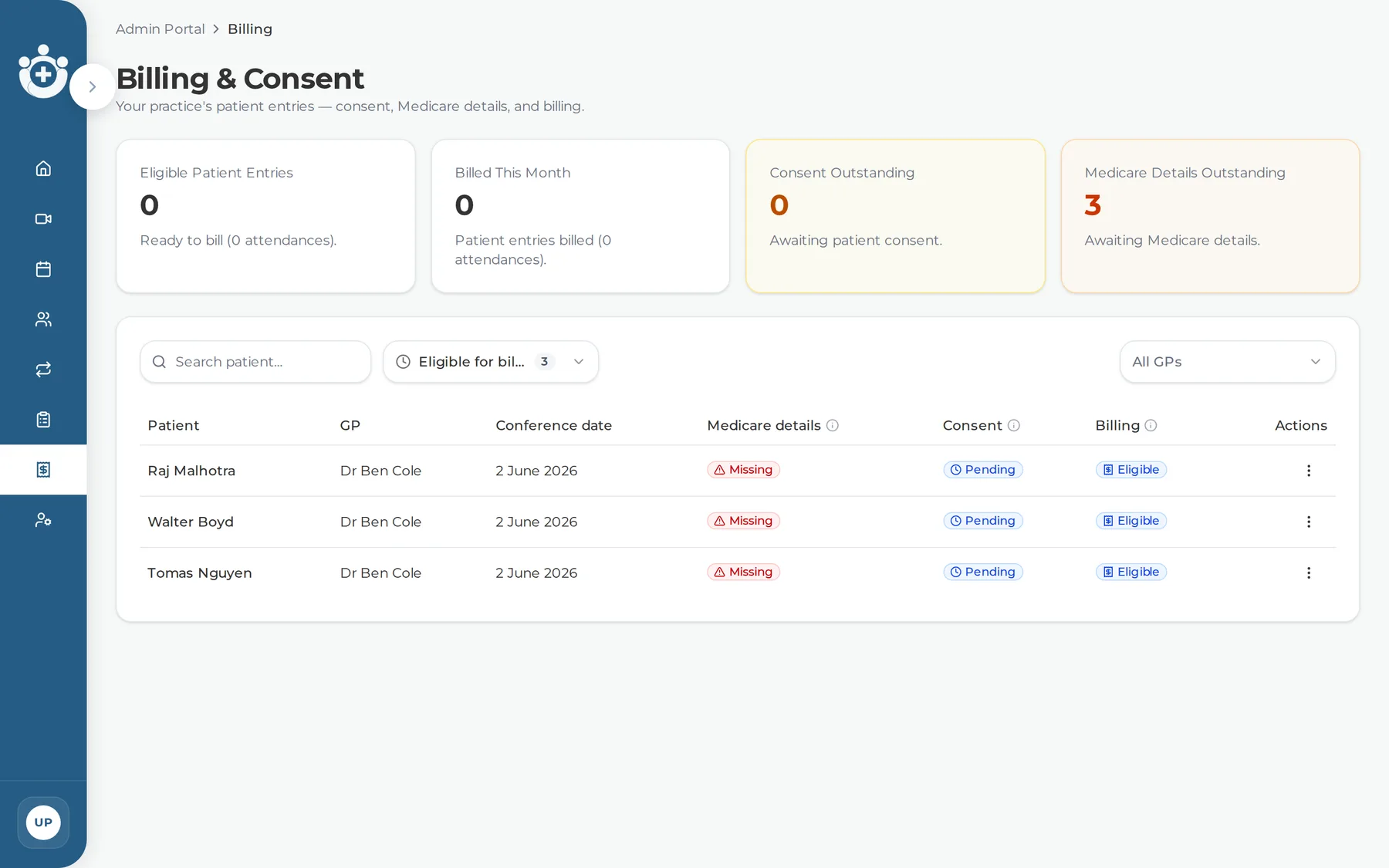
Marking an item billed
If you ever need to mark an item as billed on a GP's behalf, you can — and we record it as done on their behalf, so the audit trail stays clear.
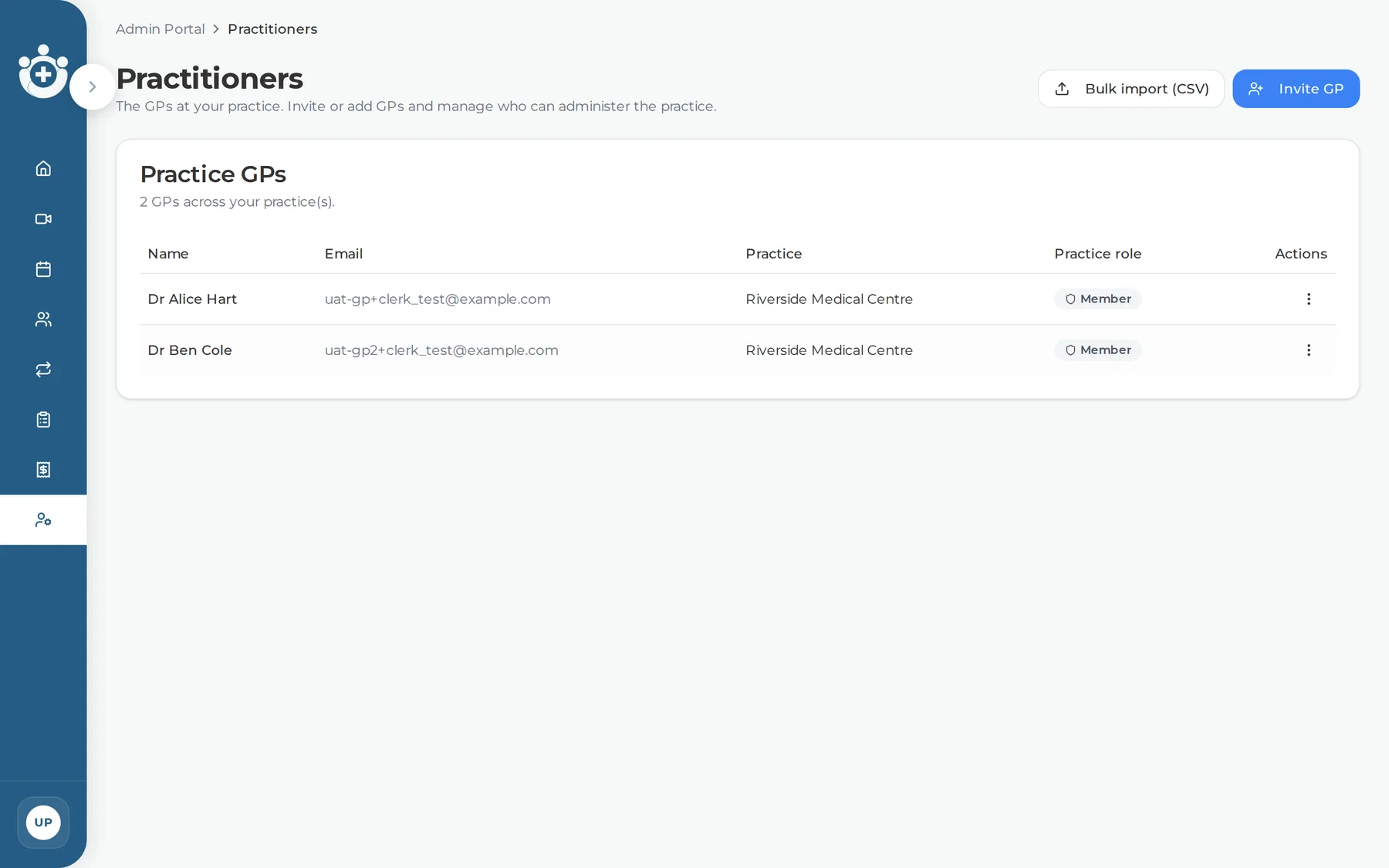
Managing practitioners
The Practitioners page is yours — it's how you keep your practice's GP list current.
Add or invite a GP
Add a GP individually, or import several from a CSV. Add their email and we'll invite them to set up their own login.
Fill in a missing email
Added a GP without an email earlier? Add it here and we'll send the invite.
Grant practice-admin to a colleague
Decide who else at the practice should have practice-admin access — grant or remove it any time.
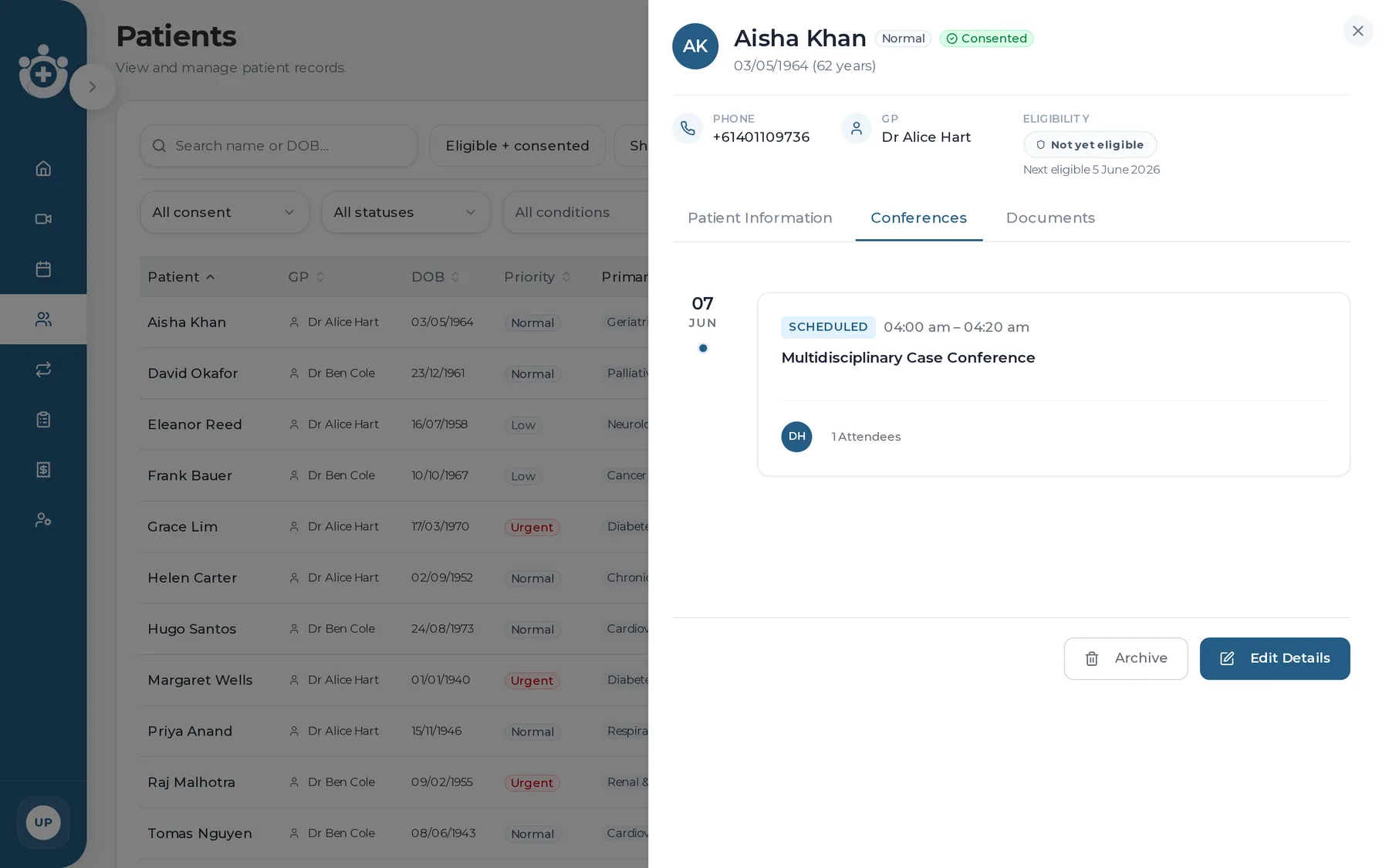
Patient call history
Open any patient to see their case-conference history — past conferences, and whether each was recorded and finalised.
Part 5 · Reference
Who does what, the badges & FAQ
Who does what
Conference.care
- The admin and scheduling
- Assembling the clinical team
- The software and tech
- Consent — for the most part
- Cancellations & reschedules
The GP
- Hosts and runs the conference
- Decides who's involved
- Leads the clinical discussion
- Claims the Medicare item
You — practice admin
- Confirm GPs & first-time setup
- Add and update patients
- Help prepare a roster when asked
- Load a conference onto a device
- Keep an eye on billing
Consent & Medicare badges
You'll see these status badges around the app. We manage most of this — the badges just keep you in the loop.
Common questions
Do I need to attend the conference?
No. The conference is between the GP and the clinical team. Your part is over once it's ready for the GP to start.
I can't see a patient I expected.
You'll see patients at your own practice, grouped under their owning GP. If one's still missing, they may not have been added yet — add them from Patients, or ask us and we'll sort it.
The "Join as GP" button isn't showing.
It appears close to the scheduled start time. Open the conference right when it's due to begin and you'll be able to load it onto the GP's device.
I need a conference moved or cancelled.
Raise a request from the conference, or just tell us. We'll handle the change — including reshuffling the clinical team.
A GP hasn't received their invite.
Check their email on the Practitioners page. If it's missing or wrong, add the correct one and we'll resend the invite.
Need a hand?
We're here. Email support@conference.care and we'll sort it out.